 United States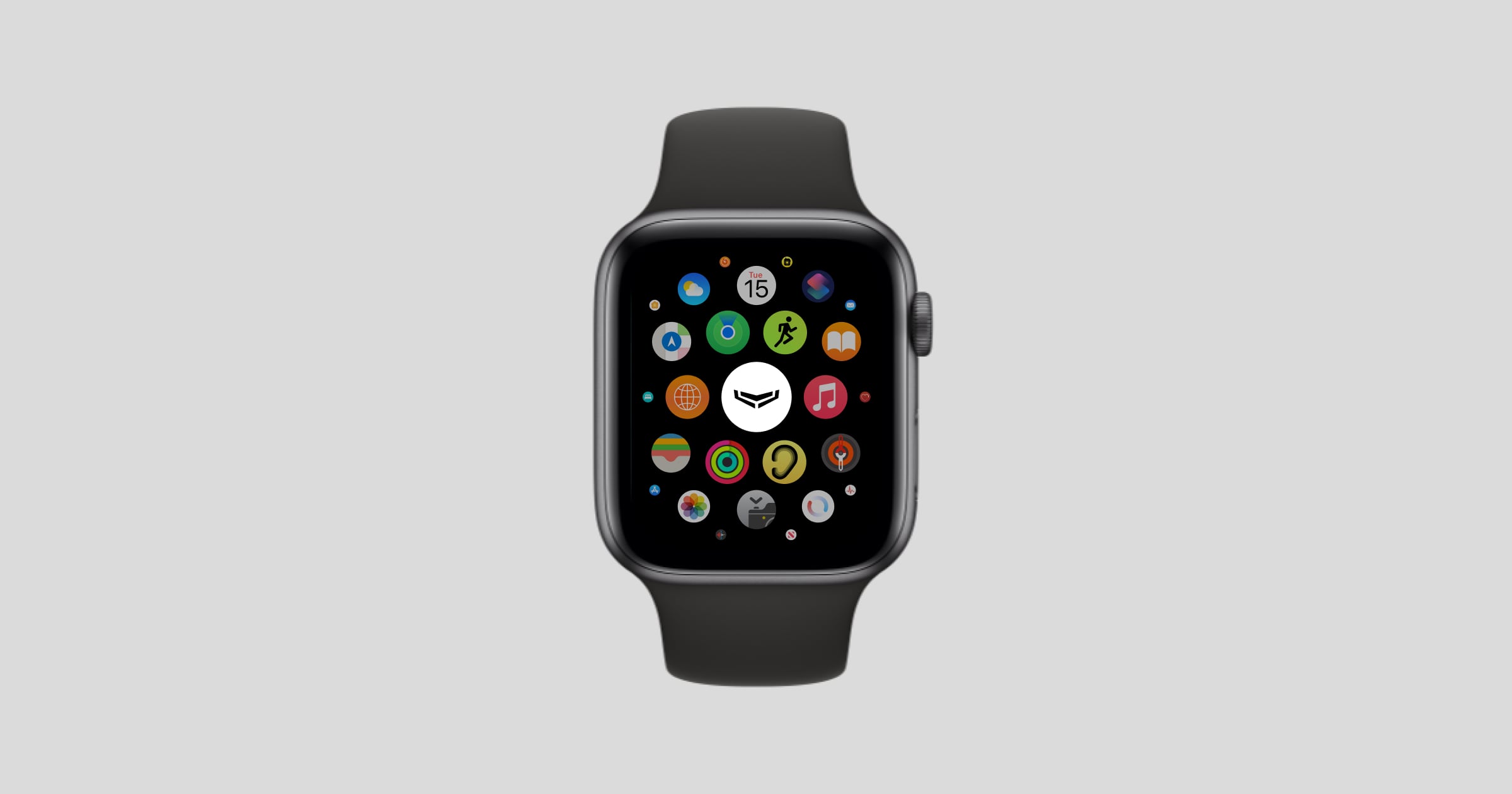
Ajax Security System for Apple Watch is an app that lets you control your Ajax system directly from your Apple Watch. With this app, you can change the system’s security state, raise a panic alarm, and receive push notifications — all without opening the Ajax app on your iPhone.
The Ajax PRO: Tool for Engineers app is available only for iPhone and not for Apple Watch.
System requirements
Ajax Security System for Apple Watch is supported by devices with watchOS 10 or later versions.
Operating principle
Using the Ajax app for Apple Watch, you can perform general actions with your Ajax system. The app allows you to switch between spaces, arm/disarm the system, activate Night mode, raise a panic alarm, receive push notifications, and more.
The Ajax app for Apple Watch works in pair with the Ajax app on iPhone. Both apps use the same Ajax account and continuously synchronize all actions and data with each other.
If Apple Watch is connected to Wi-Fi or a cellular network, you can use the Ajax app and receive push notifications on your Apple Watch, even if you are not near your iPhone.
Unlike the smartphone app, the Ajax app for Apple Watch does not allow you to perform various system configurations, manage privacy settings, view videos from cameras, etc. For more details, see the list below.
Features and actions unavailable in the Ajax app for Apple Watch:
Creating or deleting spaces.
Adding, deleting, or viewing devices, users, and rooms.
Managing privacy settings.
Changing settings for any device.
Creating or configuring scenarios.
Watching video from cameras.
Opening and browsing the notification feed (only push notifications are available).
Opening user guides.
Installation
The Ajax Security System app must be installed on your iPhone before you can install it on Apple Watch.
Ensure your iPhone is paired with Apple Watch and connected to Wi-Fi or a cellular network.
To install the Ajax app on Apple Watch:
Open the Watch app on your iPhone.
Select the My Watch tab.
Scroll down to the Available apps section.
Find the Ajax app and tap Install.
Wait until the installation is finished and the Ajax app appears on your Apple Watch.
Once the Ajax app is installed on Apple Watch, you can add it as a complication to your watch face.
Logging in
To log in to the Ajax app on Apple Watch:
Open the Ajax app on Apple Watch.
Open the Ajax app on your iPhone and log in to your account.
Wait until Apple Watch syncs your account data. Once the data is synced, the system automatically logs in to your Ajax account on Apple Watch.
To log out of your Ajax account on Apple Watch, you can simply terminate its session in the Ajax app on iPhone:
Menu →
App settings → Sessions
Note that if you log out or terminate the session in the Ajax app on your iPhone, you will automatically be logged out in the Ajax app on your Apple Watch.
App features
The Ajax app for Apple Watch allows you to perform general actions with your security system: select and control the required space, raise an in-app panic alarm, receive notifications, etc.
The Ajax app for Apple Watch can operate even if you are not near your iPhone. However, in this case, Apple Watch must be connected to Wi-Fi or a cellular network.
Selecting space
If you have multiple spaces in your Ajax account, you can select the required space in the Apple Watch app just as you would on your smartphone.
To select the required space in the Ajax app on Apple Watch:
Open the Ajax app on Apple Watch.
Tap the
button in the top left corner.
Select the required space from the list.
Controlling security state
The Ajax app on Apple Watch allows you to control the system’s security state the same way as the Ajax app on iPhone.
To control the security state in the Ajax app on Apple Watch:
Open the Ajax app on Apple Watch.
Select the required space.
Tap the following buttons to:
— arm the system;
— disarm the system;
— activate Night mode (both activate and deactivate Night mode if the group mode is enabled).
If your system has group mode enabled, you can also control the security state of an individual group via the Apple Watch app.
To control the security state of a specific group in the Ajax app on Apple Watch:
Open the Ajax app on Apple Watch.
Select the required space.
Tap the
button in the top right corner to open the group list.
Tap the required group to arm/disarm it.
How to enable and configure group mode in the Ajax system
Panic button
You can send an in-app panic alarm using the Ajax app on Apple Watch, just as you would on your smartphone.
Permission to use the device’s location must be granted to the app to send a panic alarm with coordinates.
To raise a panic alarm using Apple Watch:
Open the Ajax app on Apple Watch.
Select the required space.
Tap the
Panic button.
Touch and hold the Send panic alarm button until the countdown ends.
Notifications
The Ajax app for Apple Watch displays push notifications the same way they are displayed on your iPhone.
Note that push notifications on Apple Watch are displayed according to the Notification preferences set on your smartphone.
Reporting a problem
If you have experienced any issues with the app on Apple Watch, you can download the app logs and attach them to your report.
Our technical support team may request the app logs so they can analyze and troubleshoot any issues.
To download logs from the Ajax app for Apple Watch:
Open the Ajax app on Apple Watch. Keep it open until you finish downloading the logs.
Open the Ajax app on your iPhone.
Tap
Go to the Apple Watch tab.
Select the log file of the session in which the issue occurred.
Tap Report a problem to send the log file via email or Other… for more options.
The logs are not available while the Ajax app for Apple Watch is being updated.
Additional information
Contact Technical Support:
