 United States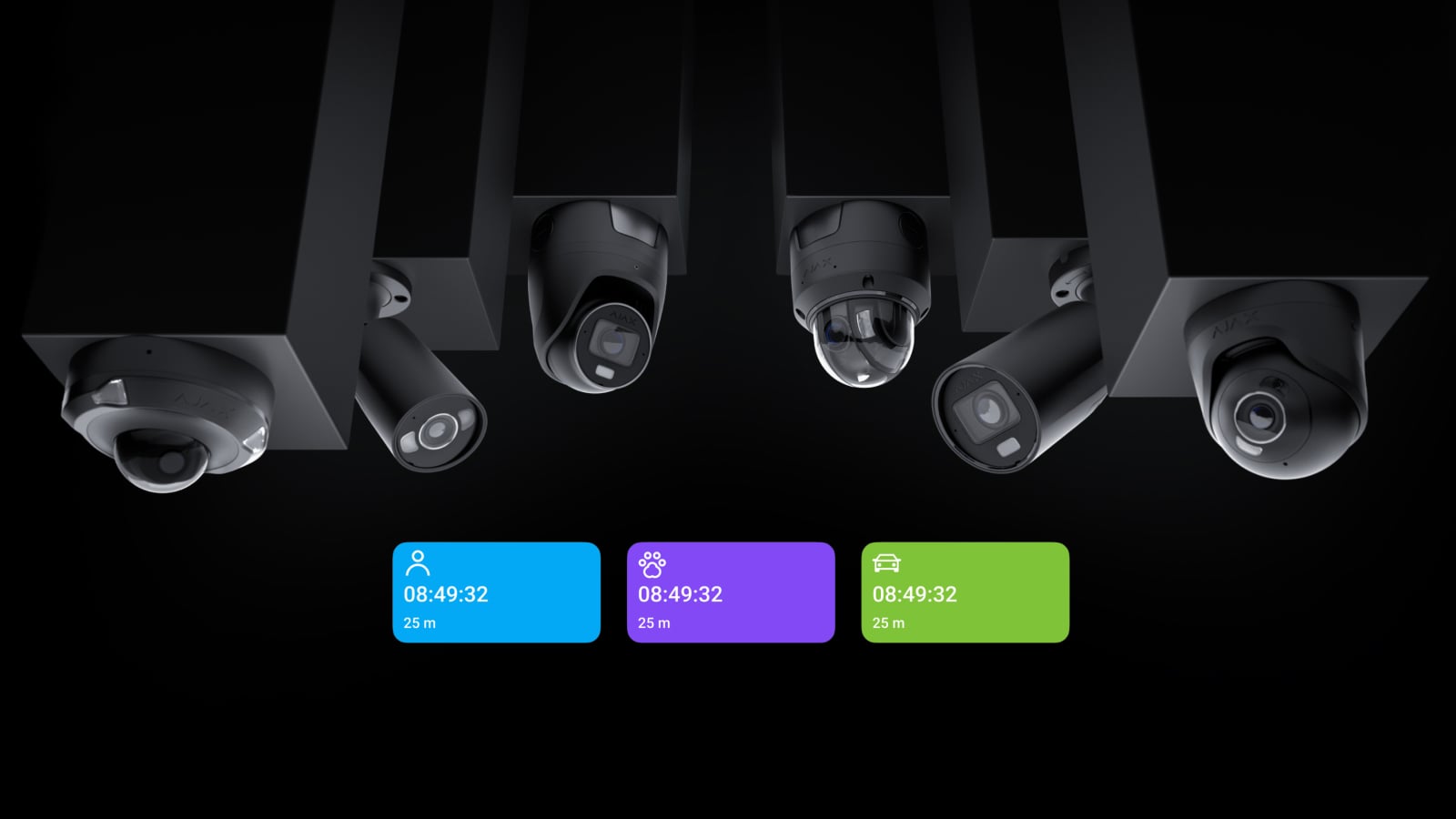
Ajax cameras offer AI-powered object detection for efficient event recording, reduced storage usage, and easy video archive navigation. This helps the surveillance system record only important events, like someone entering a room or a car passing through a parking lot.
Cameras can be configured selectively, and all processing is done in the camera itself, minimizing infrastructure load. Efficiently searching for people, cars, or pets significantly accelerates incident processing at central monitoring stations.
Ajax cameras must be correctly installed and configured for effective operation and AI recognition. Read the article to learn how to improve AI recognition and prevent false alarms.
Installation requirements
Camera positioning and testing before installation are vital to minimize false alarms and achieve the best detection results.
When choosing the installation site, consider the direction of the lens, the viewing angles of the camera, and the presence of obstacles impairing the view. Ensure that furniture, columns, plants, and decorative or glass elements do not obstruct the camera’s view.
The diagram below shows the parameters to consider when installing the camera.

- Installation height.
- Camera tilt.
- Detection area.
- Minimum detection distance.
- Maximum detection distance.
Ajax cameras should be mounted by a qualified professional installer.
Installation height
Cameras should be mounted at a distance of 3–4.5 m from the horizon. Do not install the camera on moving (e.g., construction cranes) or vibrating objects. The camera’s field of view must be fixed at all times.
Correct installation | The camera is too high | The camera is too low |
|---|---|---|
 |  |  |
Install the camera so that the minimum detection distance exceeds half the camera installation height.
Camera tilt
The camera should be tilted downward enough so that the center of the image is below the horizon. The intended path of the intruder must be perpendicular to the axis of the camera’s lens.
Correct installation | Incorrect installation |
|---|---|
 |  |
 |  |
Cameras should not be tilted more than 45° from the horizontal plane. The optimal tilt is approximately 30°. Some objects may not be recognized if you install the camera in a confined place or with a 90-degree tilt.
Correct installation (30°) | Correct installation (45°) | Incorrect installation (90°) |
|---|---|---|
 |  |  |
Object requirements
The object’s size should be less than 2/3 and more than 1/10 of the camera’s field of view.
Correct installation (the object’s size is normal) | Incorrect installation (the object is too small) |
|---|---|
 |  |
 |  |
 |  |
Ajax video devices support people, pet, and vehicle detection. The table below provides the recommended and maximum detection ranges for object types and times of day that have been measured under standardized test conditions. Other supported detection combinations are available, but their detection ranges have not been measured under standardized test conditions.
Video device | Object type | Time of the day | Recommended detection range (by default) | Maximum detection range (max sensitivity) | ||
|---|---|---|---|---|---|---|
From, m | To, m | From, m | To, m | |||
Ajax Superior BulletCam HLVF Ajax Superior TurretCam HLVF Ajax Superior DomeCam HLVF | People | Day | 1 | 41 | 1 | 55 |
Night | 1 | 32 | 1 | 39 | ||
Vehicle | Day | 1 | 75 | 1 | 78 | |
BulletCam HLVF TurretCam HLVF DomeCam HLVF | People | Day | 1 | 44 | 1 | 55 |
Night | 1 | 30 | 1 | 38 | ||
Vehicle | Day | 1 | 85 | 1 | 87 | |
BulletCam HL TurretCam HL DomeCam Mini HL | People | Day | 1 | 44 | 1 | 52 |
Night | 1 | 19 | 1 | 21 | ||
Vehicle | Day | 1 | 65 | 1 | 71 | |
BulletCam TurretCam DomeCam Mini | People | Day | 1 | 44 | 1 | 52 |
Night | 1 | 17 | 1 | 19 | ||
Vehicle | Day | 1 | 65 | 1 | 71 | |
DoorBell | People | Day | 1 | 21 | 1 | 25 |
Night | 1 | 8 | 1 | 9 | ||
IndoorCam | People | Day | 1 | 21 | 1 | 25 |
Night | 1 | 14 | 1 | 17 | ||
The object should be in the camera’s field of view for at least 2 seconds to be detected. So, install the camera where the object cannot suddenly appear.
Correct installation | Incorrect installation |
|---|---|
 |  |
The object should not be partially obscured or overlapped for the best detection results. This means that the whole object should be visible in the field of view. Object’s characteristic features, such as vehicle wheels or heads and shoulders of people, should not be obstructed by foliage, fences, or other obstacles. Otherwise, detection accuracy will be affected.
Overlapping objects in a crowded scene can decrease recognition accuracy. Thus, some objects will likely not be detected if overlapping.
People should be in the most upright position for the best recognition.
Lighting impacts
Avoid light sources, as the camera can be temporarily blinded if bright light shines directly at it. The most common direct light sources are the sun, headlights, and outdoor/indoor illumination. Position the camera so that those sources do not shine directly into the camera’s lens.
Do not install the camera in a place where light conditions change abruptly throughout the day (e.g., in front of a window that has direct sunlight for part of the day). Also, avoid mirrors and other reflective surfaces, such as wet roads, which can cause false alarms.
Indirect light sources, such as built-in IR light, can also affect detection. Do not place the camera too close to the wall. Otherwise, its IR lights will blind it during the night mode.
The IR illuminator must not shine on directly adjacent elements, such as walls or other objects in the near field of the camera. This leads to the overexposure of close-up shots and insufficient target illumination.
Correct installation | Incorrect installation |
|---|---|
 |  |
Use wide dynamic range (WDR) technology if you position the camera in a place where lighting conditions change.
WDR enabled | WDR disabled |
|---|---|
 |  |
To enable the WDR option, in Ajax apps:
- Go to the Devices
tab.
- Select the camera from the list. If it is connected to the network video recorder, select the NVR and tap Cameras.
- Go to Settings by tapping on the gear icon
twice.
- Go to the Image menu.
- Enable the Wide dynamic range (WDR) option.
- Adjust Lighting stabilization.
- Tap on Back to save the new settings.
How to reduce false alarms
False alarms can be caused by:
- Objects obstructing the scene.
- Cameraʼs positioned near reflective surfaces.
- Stationary objects triggering alarms (e.g., parked cars).
- Incorrect sensitivity settings.
Causes 1–3 can be resolved by adjusting the activity zone, and cause 4 can be eliminated by adjusting object detection sensitivity.
Other factors may also cause false alarms:
- Weather conditions, such as heavy rain, fog, or snow. They may significantly reduce the recognition distance.
- Presence of bugs and spiders, which are attracted to IR lights. Remove any cobwebs.
Adjusting the activity zone
By configuring the activity zone, you focus the camera on specific areas within its field of view so that the camera detects motion only in those zones. To do this, in Ajax apps:
- Go to the Devices
- Select the camera from the list. If it is connected to the network video recorder, select the NVR and tap Cameras.
- Go to Settings by tapping the gear icon
- Select the Detection menu.
- Go to the Motion detection settings menu.
- Go to the Adjust activity zone menu. Select the required area.
- Tap the
icon. Return to the camera settings.
Adjusting object detection sensitivity
Object detection sensitivity determines how "confidently" the camera must identify an object before reporting detection. The sensitivity level can be set from 1 to 10:
- 1 — the lowest sensitivity level. The camera reports detection only when the object is clearly visible, well-lit, and fully recognizable.
- 3 — the default sensitivity level. Recommended for most installation conditions.
- 10 — the highest sensitivity level. The camera reports detection even when it identifies objects that only partially resemble the selected object type.
Increasing the sensitivity level improves object detection in situations where objects are more difficult to recognize, such as in low lighting or fog, or when they appear in unusual positions or are partially obstructed. However, higher sensitivity may also increase the number of false detections.
Decreasing the sensitivity level reduces the number of false alarms but may increase the risk of missing objects in difficult scenarios, such as when an object is partially obstructed or moving in an unusual position.
To configure object detection sensitivity, in an Ajax app:
- Go to the Devices
- Select the camera from the list. If it is connected to the network video recorder, select the NVR and tap Cameras.
- Go to Settings by tapping the gear icon
- Select the Detection menu.
- Go to the Object detection settings menu.
- Adjust the sensitivity level for the required object type.
- Tap on Back to save the new settings.
Recommendations
- Start with the default sensitivity level of 3 and evaluate detection performance both during the day and at night.
- Adjust the sensitivity gradually in increments of 1–2 levels.
- Increase the sensitivity if the camera is installed high above the monitored area or views objects from a steep angle.
- Increase the sensitivity if fences, columns, vegetation, or similar obstacles may partially obstruct objects.