 United States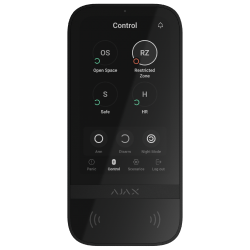
KeyPad TouchScreen Jeweller
Wireless keypad with a touch screen supporting authentication via Pass, Tag, smartphones, and codes
FAQ
What is the difference between Superior KeyPad TouchScreen Fibra and KeyPad TouchScreen Jeweller?
Superior KeyPad TouchScreen Fibra and KeyPad TouchScreen Jeweller have the same features and settings, but they have the following differences.
Superior KeyPad TouchScreen Fibra | KeyPad TouchScreen Jeweller | |
Connection | Wired | Wireless |
Communication technology | ||
Maximum communication range | Up to 2000 meters¹ | Up to 1700 meters |
Number of personal codes² | 50 | 200 |
Number of duress codes² | 50 | 200 |
Number of codes for unregistered people² | 50 | 99 |
Power supply | Powered by the Fibra line, has a rechargeable backup battery 2 × LTO AA | 6 × AA battery |
Requires external power for firmware update | No | Yes |
¹ When connected using the U/UTP Cat.5 twisted pair cable.
² The number of codes depends on the hub model.
How to replace batteries in KeyPad TouchScreen Jeweller
To replace the batteries in KeyPad TouchScreen:
Unscrew the fixing screw at the bottom of the keypad.

Remove the keypad from the SmartBracket mounting panel by gently pressing and sliding the enclosure upward.
Turn off the keypad by pressing and holding the power button for 3 seconds. The keypad will confirm shutdown with the LED indicator (Ajax logo under the screen) flashing red three times.

Unscrew the 4 screws using a PH0 screwdriver and remove the keypad’s back panel.

Remove the old batteries.
Install 6 new AA (1.5V) batteries following the correct polarity.
Do not use old, damaged, or rechargeable batteries.

Reattach the back panel and secure it with screws.
Turn on the keypad by pressing and holding the power button for 3 seconds.
Check the battery status in the Ajax app. Note that battery status updates depending on the device’s ping interval; the default value is 36 seconds.
Install the keypad back onto the SmartBracket mounting panel.
Check the keypad’s operation after battery replacement by arming and disarming the system using the touchscreen.
If the keypad operates correctly, secure it on the SmartBracket with the fixing screw.
If you have any questions or experience difficulties replacing the batteries, please contact Ajax Technical Support:
Can I mute the fire alarm of a third-party fire alarm device connected via an integration module using the keypad with a touch screen?
No, only the fire alarms of Ajax residential fire detection and alarm devices can be muted using a keypad with a touch screen.


