 United States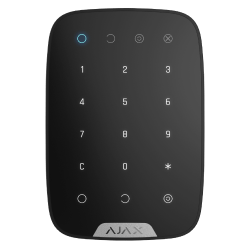
KeyPad Jeweller
Wireless touch keypad is used to arm/disarm an Ajax security system. It is mounted in the room near the entrance door to provide quick access to the keypad.
FAQ
How to arm and disarm a specific group using a personal access code
To change the security mode of a group using a personal access code:
Activate the keypad by touching any touch-sensitive button.
Enter the user ID.
Press * (Function button).
Enter your personal code.
Press * (Function button).
Enter the group ID.
Press the Arm / Disarm
/ Night Mode button
.
What is duress code, and how to use it
The duress code allows simulating the security system disarming. In this case, a user won’t be given away by the Ajax app and sirens installed at the facility, and the security company and other security system users will be warned about the incident.
Alarm special features when entering the duress code:
The security company’s Central Monitoring Station (CMS) will receive a “disarming under duress” alarm event. A rapid response team goes to the object.
All the security system users receive the notification about the system disarming (marked with a red icon
).
If the security system is disarmed by mistake, contact the security company CMS.
The keypad supports both a general duress code and a personal one. The general duress code is set in the keypad settings.
You can set a personal code in the user settings. Each user sets this code individually.
Learn more about controlling security modes with access codes in the keypads’ User Manuals on the Support website.
How to create a duress code for a user without an Ajax account
With OS Malevich 2.13.1 update, Ajax keypads support codes for users not connected to the hub. This is convenient, for example, to create a code for a cleaning company.
Access codes are not supported by the Hub (2G) Jeweller control panel.
To create a duress code for a user without an account, you first need to create a personal access code. After that, in the Ajax app:
Go to the Devices
menu.
Select the hub from the list.
Go to its settings by clicking on the gear icon
.
Go to the Keypad Access Codes menu.
Select the user from the list.
Go to the Duress Code menu.
Set the duress code. The code can contain from 4 to 6 digits.
Click Done.
Click Save to save your changes.
When using a duress code, the system users with access to the event feed will be notified about who and when entered the duress code, and the security company will be informed about the incident.


