Language:

Partner Portal

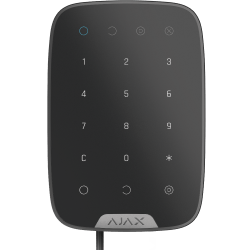
Superior KeyPad Fibra

Superior KeyPad Fibra

Wired keypad with touch buttons

FAQ

How to create a duress code for a user without an Ajax account

With OS Malevich 2.13.1 update, Ajax keypads support codes for users not connected to the hub. This is convenient, for example, to create a code for a cleaning company.

To create a duress code for a user without an account, you first need to create a personal access code. After that, in the Ajax app:

  1. Go to the Devices HubFilled-M menu.

  2. Select the hub from the list.

  3. Go to its settings by clicking on the gear icon Settings-M.

  4. Go to the Keypad Access Codes menu.

  5. Select the user from the list.

  6. Go to the Duress Code menu.

  7. Set the duress code. The code can contain from 4 to 6 digits.

  8. Click Done.

  9. Click Save to save your changes.

When using a duress code, the system users with access to the event feed will be notified about who and when entered the duress code, and the security company will be informed about the incident.

What is a personal access code, and how to set it up

A personal access code is needed to manage the security modes of the system using Ajax keypads on behalf of the user.

Each user registered in the system can set a personal access code. To do this, in the Ajax app:

  1. Go to the Devices HubFilled-M menu.

  2. Select the hub.

  3. Go to its settings by clicking on the gear icon Settings-M.

  4. Open the Users menu.

  5. Find your account in the list and click on it.

  6. Go to Passcode Settings.

  7. Set a personal user code. The personal code can contain from 4 to 6 digits.

  8. Click OK.

  9. Click Back to save your settings.

For more information on managing security modes using personal access codes, check the keypads’ User Manuals on the Support website.

How to find out the device ID

The identifier (ID) is the serial number of the device. It can be found under the QR code on the device’s enclosure, board, and packaging.

ID at the bottom of the box

ID at the bottom of the box

ID under the lid

ID under the lid

The ID can also be found in the device states in Ajax apps:

  1. Open an Ajax app and log in to your account.
  2. Select the required space.
  3. Go to the Devices HubFilled-M tab.
  4. Select the required device from the list. Device ID information is located at the bottom of the states menu.
Device ID information is located at the bottom of the states menu.