 United States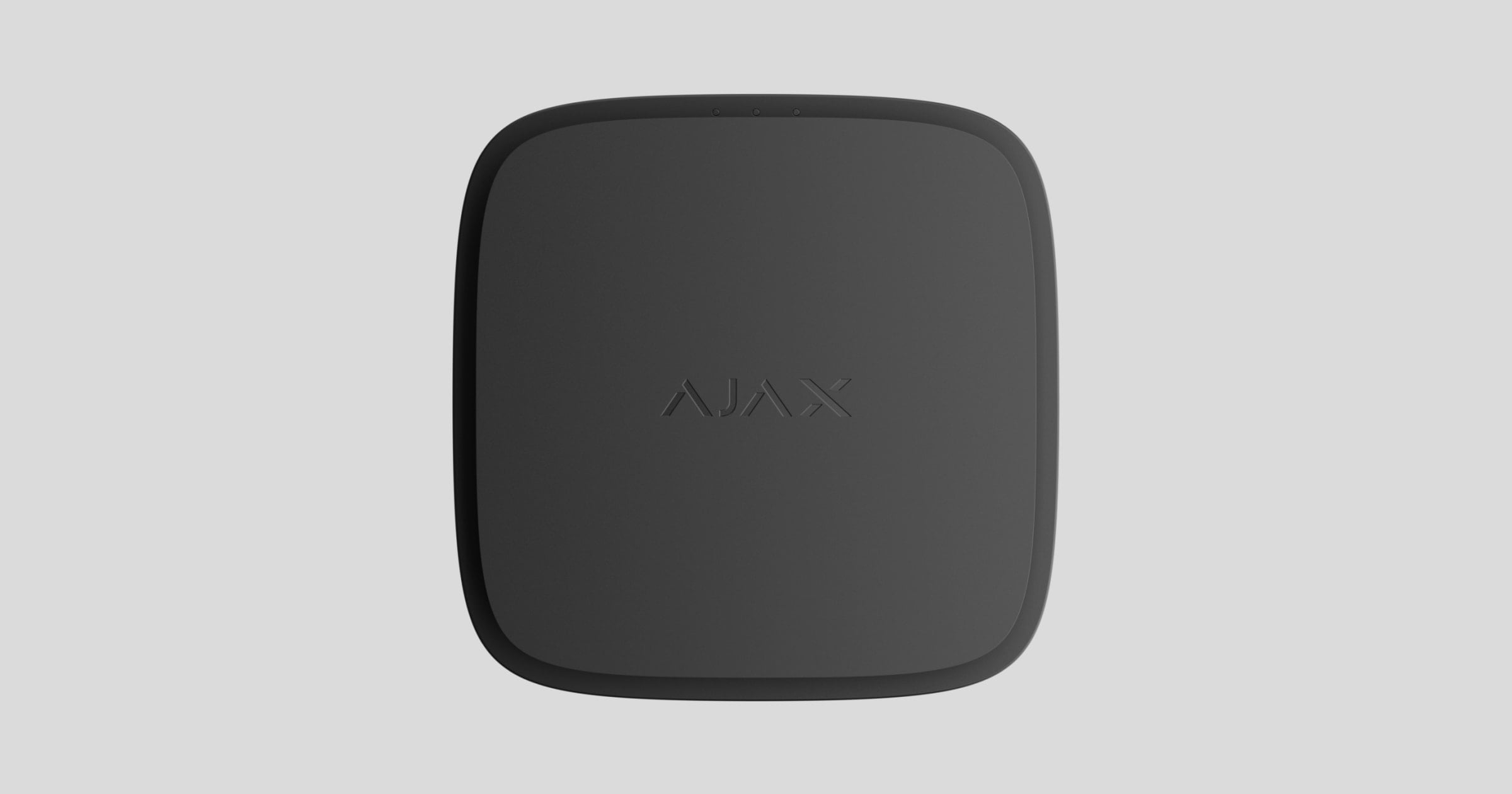
Fire Hub Lite (Smoke) Jeweller is a wireless addressable fire alarm control panel combined with a smoke detector. It detects smoke, provides local audible alarms, communicates with compatible devices, and transmits events to the monitoring station via cellular connection.
Fire Hub Lite (Smoke) Jeweller supports wireless interconnection. If one device detects smoke, other compatible devices on the premises also sound an audible alarm.
Functional elements

- Front panel with the Test/Mute button. To activate the button, press the center of the panel.
- SmartBracket mounting panel with protective cover. To remove the panel, insert a screwdriver into the appropriate hole (functional element 19) and turn SmartBracket counterclockwise.
- Holes for securing SmartBracket to the surface.
- Hole for running the cables.
- Device QR code and ID (serial number). Used to add the device to the system.
- Device certification information.
- Tamper button.
- Power button.
- Device contacts.
- WAGO 221 power supply phase (L) connection terminals.
- WAGO 221 power supply neutral (N) connection terminals.
- Contacts on the SmartBracket mounting panel.
- Green LED indicator.
- Yellow LED indicator.
- Piezoelectric buzzer.
- Slot for a micro-SIM card.
- Red LED indicator.
- Smoke chamber lid.
- Hole for inserting a screwdriver.
The smoke chamber lid can be removed when the enclosure is completely disassembled. The system identifies this event as a fault, and the device responds with an audible signal. Users receive a fault notification, while the monitoring station receives a fault event.
Compatible devices
Fire Hub Lite (Smoke) Jeweller is compatible only with the FireProtect 2 SB and FireProtect 2 AC series detectors.
Operating principle
Fire Hub Lite (Smoke) Jeweller is a wireless addressable fire alarm control panel combined with a smoke detector. It operates on a 110–240 V, 50/60 Hz power supply and has a built-in backup battery.
The control panel is equipped with a piezoelectric buzzer for audible alerts with a volume of up to 85 dB (at a distance of 9.8 ft from the device). The control panel is always active and detects fire 24/7.
Fire Hub Lite (Smoke) Jeweller features two tamper buttons. When one of them is triggered, the control panel provides an LED indication. Users receive an alarm notification via the app, while the monitoring station processes the alarm event.
To monitor the operation of all system devices, the control panel communicates with them via the Jeweller data transfer protocol. Jeweller is a proprietary radio technology that provides fast and reliable two-way communication between the control panel and devices. The control panel uses Jeweller to transmit commands, alarms, and other events. The communication range is up to 4,900 ft in open space.
Cellular communication and event storage
When external power is available, Fire Hub Lite (Smoke) Jeweller uses cellular communication to transmit alarms, faults, test results, and other events to the cloud server.
If the server connection is temporarily unavailable, the control panel stores generated events in its internal memory.
When the connection is restored, stored events are transmitted to the cloud in chronological order.
Device capacity
Fire Hub Lite (Smoke) Jeweller supports the following limits:
- Users: 1.
- Devices: up to 49.
Sabotage protection
When a jamming attempt is detected, the system switches to an idle radio frequency and sends notifications and events to users and the monitoring station.
The control panel regularly checks the quality of communication with all connected devices. If any device loses its connection to the control panel, all users (depending on the settings) and the monitoring station receive a corresponding notification or event when the specified time expires.
OS Malevich
Fire Hub Lite (Smoke) Jeweller runs on the real-time operating system OS Malevich, which is protected from viruses and cyberattacks.
OS Malevich brings new features and functionality to the system through over-the-air updates. When an update is available, a user can start the installation in the app.
The update takes up to two minutes when an external power supply is connected.
Smoke sensor
Fire Hub Lite (Smoke) Jeweller detects smoke with a dual-spectrum optical sensor. Inside the smoke chamber, the sensor has blue and infrared LEDs that emit light at different wavelengths. This technology allows the control panel to determine the size of the volatile particles inside the chamber and respond to smoke.
The smoke chamber in Fire Hub Lite (Smoke) Jeweller is protected from dust, dirt, and insects. Even if dust gets inside and settles, it does not compromise fire detection. The optical system is designed to prevent non-volatile particles from simultaneously entering the fields of view of the blue and infrared LEDs, eliminating false alarms.
The HazeFlow 2 software algorithm also helps prevent false alarms. When a threat is detected, the algorithm additionally processes the received data to confirm the alarm.
Test/Mute button
Test/Mute is a mechanical button located under the device's front panel. Тo activate it, lightly press the center of the front panel. Use a suitable item, such as a mop handle, if you cannot reach the device with your hand.
The button performs several functions:
- In normal operating mode, it starts the device self-test.
- When operating in a network of fire devices that propagate an interconnected fire alarm without a control panel, it starts a network coverage area test.
- In the event of an alarm, it mutes the control panel alarm or the interconnected alarm of all fire devices in the system for 10 minutes.
- In the event of a fault or low battery, it mutes the sound indication for 12 hours.
To run the self-test or network coverage area test, wait at least 3 minutes after turning on the control panel.
Interconnected fire detector alarm
Compatible devices can synchronously provide a fire alarm. There are two ways: primary and fallback (both work in parallel).
In the event of danger, the initiating device sends a fire alarm to the control panel. The control panel initiates the primary interconnect: all fire devices activate their built-in buzzers within 20 seconds. If the alarm is delivered to the control panel, fallback interconnection is not activated. If the alarm cannot be delivered to the control panel, the initiating device activates fallback interconnection, directly sending the alarm to other fire devices. Even if the connection with the control panel is lost, the interconnected fire alarm is raised within one minute.
The FireProtect 2 devices feature multiple sound signals and LED indications for different alarm types, making it easier for users to distinguish between them. In case of an interconnected alarm, all FireProtect 2 devices indicate the exact alarm type detected by the initiating device.
Adding the control panel to the system
To add the control panel to the system:
Remove the SmartBracket mounting panel from the control panel. To remove the panel, insert a screwdriver into the appropriate hole and turn SmartBracket counterclockwise.
Install a micro-SIM card in the appropriate slot.
Remove the protective cover from the mounting panel by turning it counterclockwise as shown below.

De-energize the cable that you will connect to the control panel. Route the external power supply cable through the hole in the mounting panel.
Remove the WAGO terminals from the mounting panel.
Connect the cables to the appropriate WAGO terminals: power phase — to L, neutral — to N.
Secure the WAGO terminals in the mounting panel. Organize the cables and secure the protective cover.

Place the device on the SmartBracket mounting panel.
Turn on the external power supply.
Open the app and follow the on-screen instructions for adding the control panel to the system.
Scan the QR code on the control panel or packaging, or enter the device ID manually.
Turn on the control panel by holding the power button for 3 seconds.
Follow the step-by-step guidance.
Device connection
To add a compatible device to Fire Hub Lite (Smoke) Jeweller, follow the instructions in the app.
The device must be located within the control panel's radio communication range at the same secured site.
Device locking
When a compatible device is added to Fire Hub Lite (Smoke) Jeweller, its ID is automatically verified. If the device is added for the first time, it is registered to the current account.
If the device has already been registered to another account, it cannot be added. The app displays an error indicating that the device is locked or cannot be added to this control panel.
Devices added before the device locking feature became available are not locked automatically. To lock such a device, remove it from the control panel and add it again.
Self-test
The self-test allows checking the state of the device's sensor. It can be run in two ways: by pressing the Test/Mute button or via the app.
To run the self-test, wait at least 3 minutes after turning on the control panel.
If the control panel is in an alarm state, the self-test is not available.
To run the test using the Test/Mute button, press the center of the front panel and hold it for 1.5 seconds.
To run the test via the app:
- Open the app.
- Select Fire Hub Lite (Smoke) Jeweller.
- Go to the settings by tapping the gear
icon.
- Tap Self-test.
After starting the test, all LEDs light up for 5 seconds, then the red LED blinks 3 times. The control panel's buzzer is activated simultaneously with an LED indication. When the test is complete, users receive a notification about the device state in the app.
The device also provides sound and LED indications of the test results. If the test fails and a fault is detected, the device starts indicating a fault 3 seconds after the test begins: the yellow LED blinks twice, and the buzzer beeps simultaneously.
The self-test does not start immediately but no later than 30 seconds after pressing the Test/Mute button or starting the test from the app.
To stop the test, press the Test/Mute button again.
Network coverage area testing
The network coverage area test checks whether compatible fire devices can receive and relay an interconnected alarm without communication through the control panel.
The test can be started via the app or by pressing and holding the Test/Mute button, depending on the device state and settings. It is available only if at least two compatible devices are added to the control panel and no alarm is activated.
After the test is completed, the app displays the result. If the test fails, the app shows which devices did not respond.
If the test is started by pressing the Test/Mute button, the device first performs the self-test and then tests the network coverage area. The detectors in the network should repeat the sound and LED indications of the initiating detector and return to the standard operating mode.
Selecting an installation place
The device is designed for indoor installation only.
The coverage area of one Fire Hub Lite (Smoke) Jeweller is 540–650 sq. ft., depending on the site type.
The device should be installed in every room. Mount the device in the center of the ceiling, at least 12 inches away from light fixtures, chandeliers, or other decorative objects that may interfere with fire detection.
If ceiling beams protrude 12 inches or more, install the control panel between every two beams. If the beams protrude by less than 12 inches, installation on a beam in the central part of the ceiling is allowed.
In halls or narrow corridors, install the devices no more than 24.6 ft apart.
If the ceiling is sloping, install the control panel 24 inches from the highest point of the ceiling. To determine the installation place, draw a straight line down from the highest point of the ceiling. Then, draw a perpendicular line from this line to the sloping part of the ceiling. Install the device at this point.
We do not recommend mounting the device on a wall. This method is acceptable if closely spaced beams or other obstacles interfere with the ceiling installation. Wall mounting is possible only if the device is installed 6–12 inches below the ceiling and above the doorways.
When installing the control panel on the wall, ensure the LED indicators are visible. This means FireProtect 2 devices must be installed upside down.
When choosing the installation place for the control panel, consider the factors that affect its operation:
- Jeweller signal strength.
- Distance between the control panel and devices.
- Obstacles that affect the radio signal, such as walls, interfloor ceilings, and large objects in the room.
Consider the placement recommendations when designing the system. Only specialists must design and install the system.
Signal strength
The Jeweller signal strength is determined by the ratio of the number of undelivered or corrupted data packets to the total number of packets expected to be exchanged between the control panel and the device over a given period. The icon on the Devices
tab indicates the signal strength:
- Three bars — excellent signal strength.
- Two bars — good signal strength.
- One bar — low signal strength; stable operation is not guaranteed.
- Crossed-out icon — no signal.
Check the Jeweller signal strength at the installation site. If the signal strength is as low as 1 or 0 bars, we cannot guarantee stable operation of the device. In this case, move the device. Repositioning even by 8 inches can significantly improve signal reception.
How not to install the device
- Outdoors. This can lead to device failure.
- In places with low or unstable Jeweller signal strength. This can result in connection loss.
- Inside premises where the temperature and humidity are outside the permissible limits. This could damage the device.
- In places with fast air circulation, such as near fans, vents, open windows, or doors. This may interfere with the smoke detection.
- In the corners of a room. This may interfere with fire detection.
- In rooms where the generation of gases, vapors, or smoke is part of the operating process. For example, in a garage, where vehicle exhaust gases may cause false alarms. For such premises, we recommend using a device without a smoke sensor: FireProtect 2 SB (Heat/CO) Jeweller.
- In very dusty places or areas with many insects. Insects, dust, and other contaminants can settle on the smoke chamber lid and interfere with fire detection.
- Near lighting fixtures, decorations, and other interior items that may interfere with air circulation in the room. This may prevent fire detection.
- In high or inconvenient places. Access to the Test/Mute button is required to mute the alarm and test the device if it is used without a connection to a control panel.
Installation
Make sure that the optimal installation place has been selected and meets the requirements of this manual.
Do not remove the smoke chamber lid during installation. The smoke chamber lid can be removed when the enclosure is completely disassembled. The system identifies this event as a fault, and the device provides an audible signal. Users receive a fault notification, while the monitoring station receives a fault event.
During installation and operation of the system, adhere to the rules and requirements of regulatory legal acts on electrical safety. Do not disassemble the device while it is energized or use it with a damaged power cable.
Only a competent specialist should install this device.
Fire Hub Lite (Smoke) Jeweller does not require an additional surface mount pattress for installation. The device's mounting panel is designed for installation on any surface and includes the WAGO terminals for connecting the power cables.
To install the device:
Remove the SmartBracket mounting panel from the device. To remove the panel, insert a screwdriver into the appropriate hole and turn SmartBracket counterclockwise.
Secure the SmartBracket panel to a surface using temporary fasteners. Install the device on the SmartBracket mounting panel. To do this, turn the device clockwise.
Run the Jeweller signal strength test. The recommended value is 2 or 3 bars.
If the signal strength is 1 bar or lower, we cannot guarantee the stable operation of the device. Consider relocating the device, as even a 20 cm 8 inches repositioning can significantly improve the signal strength.
Remove the device from the mounting panel. Remove SmartBracket from the surface.
Remove the protective cover from the mounting panel by turning it counterclockwise as shown below.
De-energize the cable that you will connect to the control panel. Route the external power supply cable through the hole in the mounting panel.
Remove the WAGO terminals from the mounting panel.
Connect the cables to the appropriate WAGO terminals: power phase — to L, neutral — to N.
Secure the WAGO terminals in the mounting panel. Organize the cables and secure the protective cover.
Secure the SmartBracket panel with the bundled screws using all fixing points. When using other fasteners, make sure they do not damage or deform the mounting panel.
Install the control panel on SmartBracket.
Adjust the device position if necessary.
Turn on the external power supply.
Perform the self-test after the installation is finished.
External power loss
Fire Hub Lite (Smoke) Jeweller requires external power for operation and continuous cellular communication.
After the external power supply is lost, the control panel switches to detector operating mode. In this mode, the smoke detector remains active, while control panel functions are unavailable.
When external power is restored, the device resumes normal operation and sends a restoration event to the monitoring station.
Faults
When a fault is detected, the app displays a fault counter on the device icon.
A fault is displayed if:
- There is no connection with the cloud.
- The control panel enclosure is open.
- The smoke chamber lid is not closed.
- External power is lost.
- The backup battery charge is low.
- The smoke chamber is polluted.
- A hardware fault is detected.
Maintenance
The device has a self-test system and requires no user or installer intervention. The smoke chamber is protected from dust and insects, so there is no need to clean it. We recommend periodically running a self-test to familiarize people with the alarm sound and LED indications.
Clean the device enclosure of dust, cobwebs, and other contaminants as needed. Use a soft, dry cloth suitable for equipment care. Do not use substances that contain alcohol, acetone, gasoline, or other active solvents to clean the device.
The device must be replaced after the backup battery is depleted.
Technical specifications
Warranty
The warranty for the products of the Limited Liability Company "Ajax Systems Manufacturing" is valid for two years from the date of purchase.
If the device does not operate properly, we recommend contacting Ajax Technical Support first. In most cases, technical issues can be resolved remotely.
Contact Technical Support:
Manufactured by "AS Manufacturing" LLC
